Office 2013-2021 C2R Install - Install Lite 7.3.2 b2
At a glance
Software
Office C2R Install
Unknown
Version
7.3.2 b2
Platforms
- Windows
Difficulty
BeginnerThis is a tutorial on how to install Microsoft Office apps like Word, Excel, PowerPoint, etc. and use Office 2013-2021 C2R Install - Install Lite 7.3.2 b2
Disclaimer: This app's usage is your responsibility—please run your own checks. I'm here to support you however I can, so reach out anytime if you're stuck or need guidance. Ready when you are.
IMPORTANT NOTICE 1: Please make sure to disable any antivirus that you may have on your laptop during the setup and use of this app, you may delete the app and reactivate your antivirus later without issue.
IMPORTANT NOTICE 2:
IF this is your first time using this app, start with STEP 1, then proceed with STEP 2.
ELSE just skip to STEP 2
STEP 1: Reinstall Microsoft Office
If you have any antivirus other than Windows Antivirus, then follow the guide from your provider to disable the antivirus temporarily.
For Windows Antivirus, click on Start Icon
Search for Windows Security and Open it
Click on "Virus & Threat Protection"
Click on "Manage settings"
Disable "Real-time protection"
Download "Office 2013-2021 C2R Install - Install Lite 7.3.2 b2.zip" below (It might ask for a password which is provided below)
Unzip "Office 2013-2021 C2R Install - Install Lite 7.3.2 b2.zip" (It might ask for another password again which is also provided below)
Open "OInstall.exe"
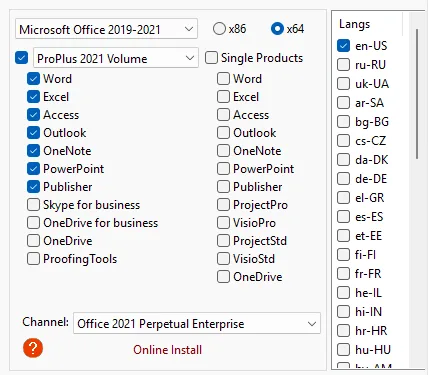
Choose these options below:
Select "Microsoft Office 2019-2021" or your desired option in the dropdown box
Select x64 or x86 (depending on your architecture) (Scroll to the end for a guide on how to verify your architecture)
Select ProPlus 2021 Volume or your desired option in the second dropdown box
Check the box for the app that you wish to use (For a normal user, I would recommend you choose these only Word, Excel, Access, PowerPoint, Publisher)
IF you are just reactivating an Expired Subscription THEN just move to "Activation/Reactivation of Microsoft Office", IF its your first time using "Office 2013-2021 C2R" then continue below:
Click "Uninstall Office" (This will launch the official uninstaller from Microsoft)
Let the uninstall finish completely
Click on "Force Remove Office" to remove any leftovers
Let the process finish also
Click "Install Office"
Let the installation complete successfully.
Restart you Laptop or PC
STEP 2: Activation/Reactivation of Microsoft Office
Open "Office 2013-2021 C2R" and click on Utilities and Settings
Click on "Office RETAIL => VL"
Let the process finish until nothing is writing anymore ad it says "Completed" or "Exiting" in the bottom light blue box and stay as such
Click on "Activate Office"
Let the process finish until nothing is writing anymore ad it says "Completed" or "Exiting" in the bottom light blue box and stay as such
Thats it, you may now close "Office 2013-2021 C2R" and use you Word, Excel, etc.
How to determine your architecture?
Windows 10
Click Start and open Settings (gear icon).
Go to System.
Scroll down the left menu and click About.
Under Device specifications, look at System type.
"64-bit operating system, x64-based processor" means x64.
"32-bit operating system, x86-based processor" means x86.
Shortcut: press
Win + Pause/Breakto jump straight there.Windows 11
Right-click the Start button and choose System, or open Settings → System.
Scroll to the bottom and click About.
Under Device specifications, check System type.
"64-bit operating system, x64-based processor" means x64.
"64-bit operating system, ARM-based processor" means ARM64.
Windows 11 only comes in 64-bit, so it will always be either x64 or ARM64, never x86.